

Once you have located the data you need using the data exploration tools, select all datasets you’d like to access on the Download Data page, then click Download. You will be taken to a short data request form.
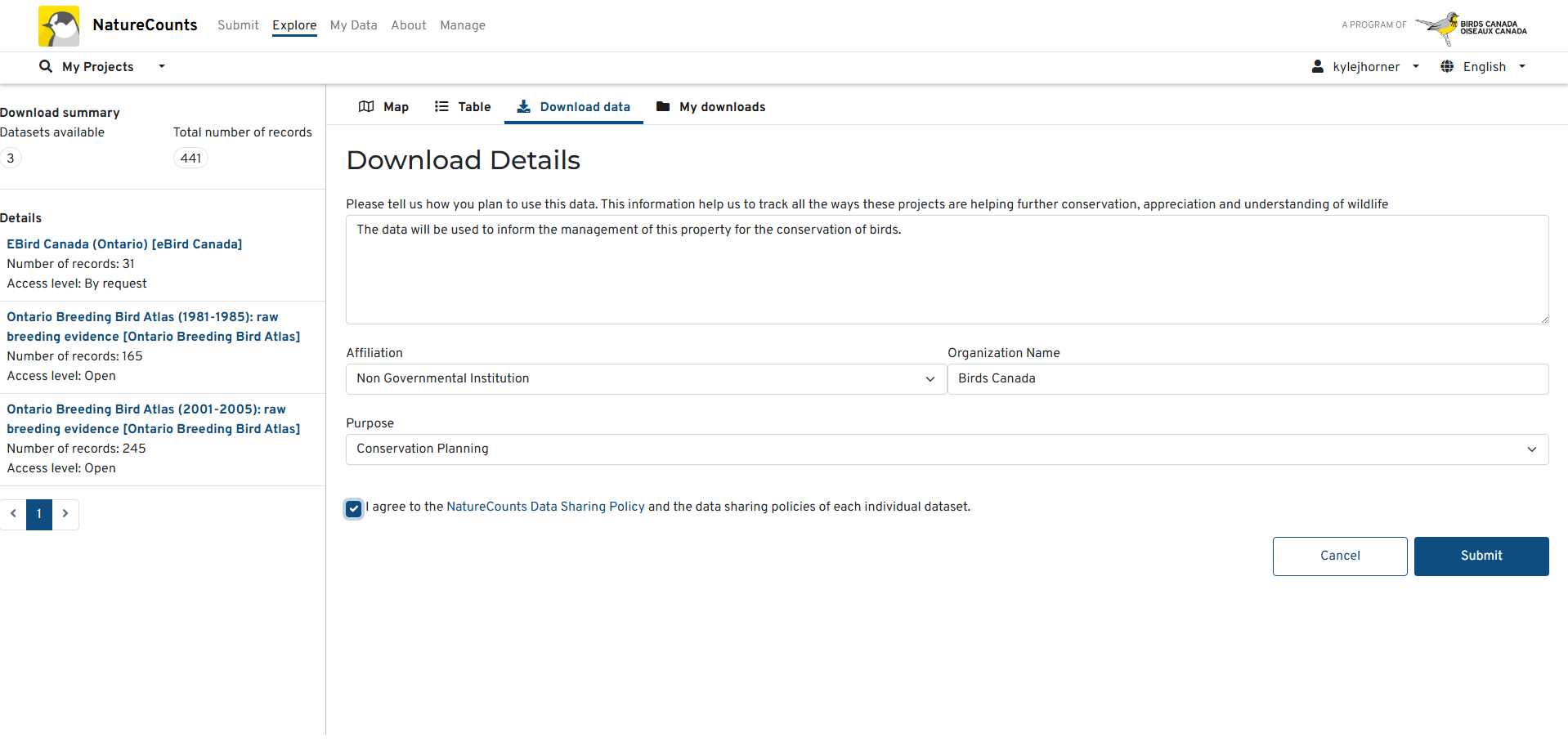
It is important to include sufficient detail in your data request – lack of information is the most common reason that requests are not approved. You should explain what the data will be used for, any anticipated publications or products using the data, and how you plan to acknowledge the data contributors. This information allows both NatureCounts and data owners to track the use of the data, and also to ensure that data are not used in ways that may harm sensitive species or locations.
Once you have completed and submitted the form, you will see a thank you page with several useful links, including an option to go to the My Downloads section where you can view your available data. The time it takes for your downloads to become available depends on the access level of the dataset.
Datasets which are fully open (access level 5) should become available almost immediately. Datasets which are “by request” (access levels 3 and 4) must go through a review process which may take anywhere from one to several days. Regardless of the access level, you will receive an email when your data request is approved.
Once your downloads are ready, you can access your data anytime in the My Downloads tab. Simply select your download from the list on the left. For each dataset you have requested, you will see a status of Approved, Pending, or Rejected. If your request has been approved, a download button will appear beside the dataset. If it has been rejected, you should also see a reason for the rejection. If desired, you may remedy the issue and submit another request.
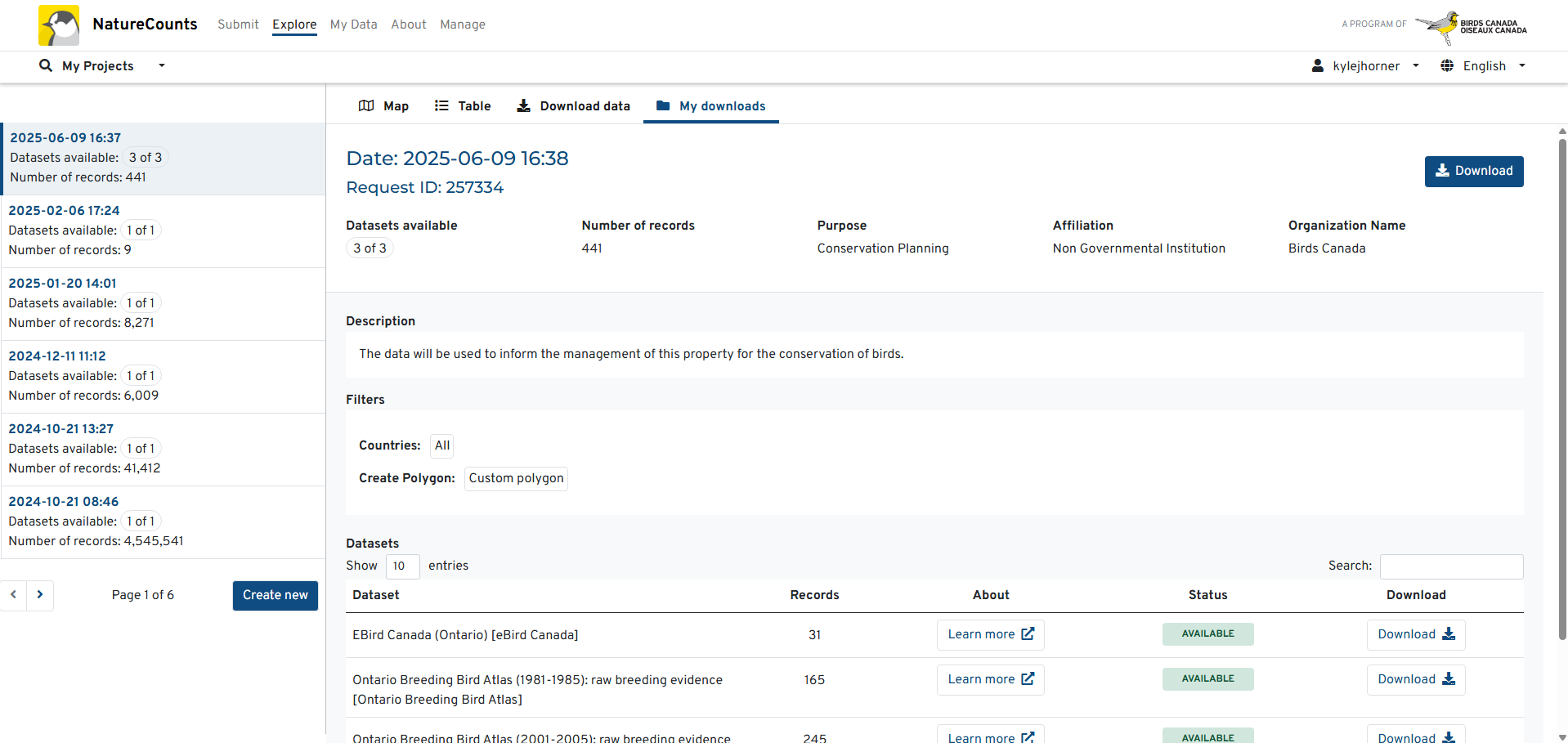
Once approved, you can also access all of your requested data in R. Accessing data in R will be covered in Module 5.
Next section: About Your Data Download