
If this is your first time signing in, you will be prompted to select a region. Tap ‘Select Region’ and choose the region(s) in which you will be collecting data, then tap ‘Apply’. You will see a list of all available projects in your region(s).

If you do not see the Select Region screen, you can always find the list of projects by tapping the Settings tab, then ‘Manage Projects’, then ‘All Projects’. You can select a region by tapping the hamburger button (three little bars in the upper right).
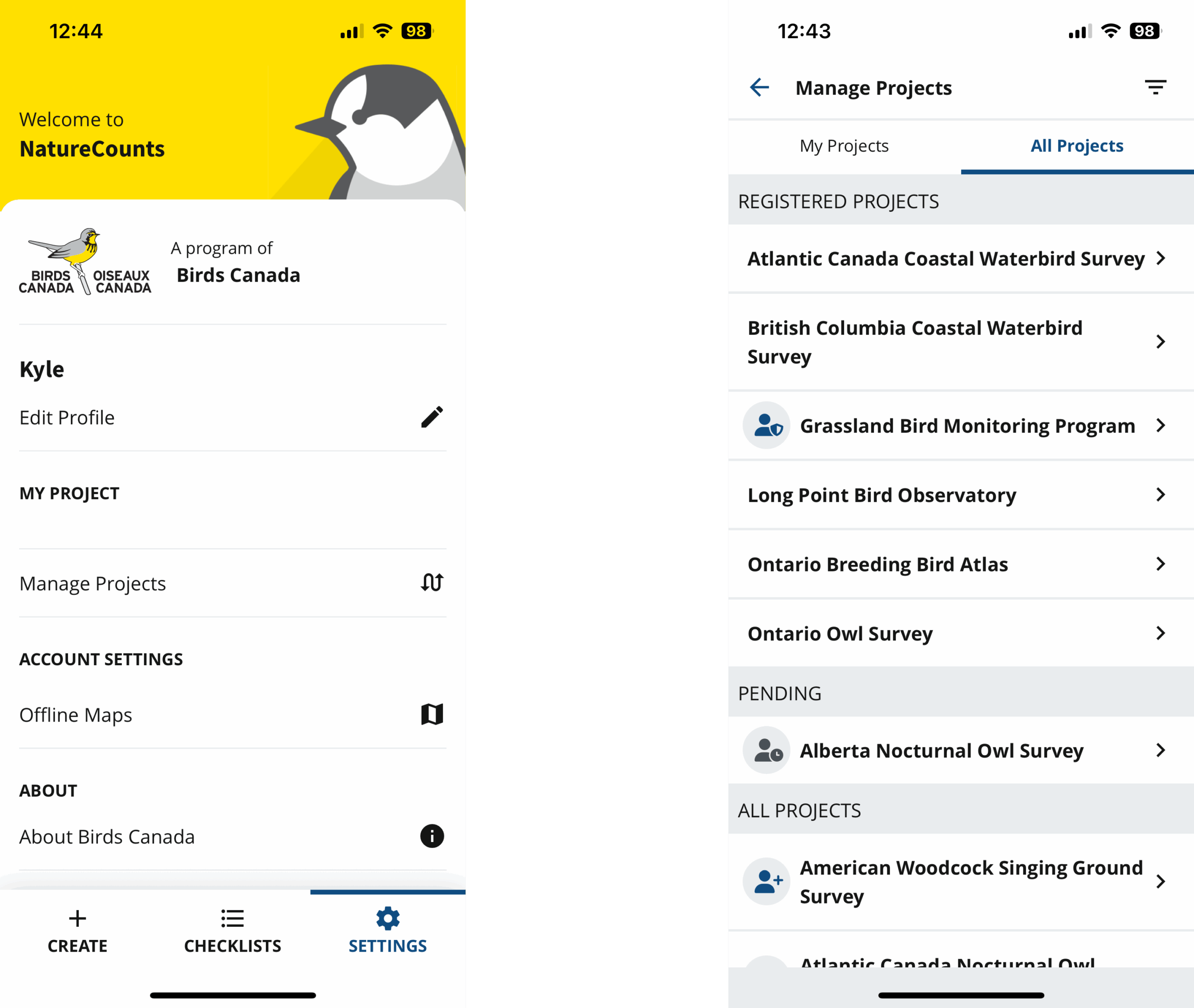
Before you can collect data with the app, you must register for the CBC. You can do this on the NatureCounts website or directly in the app. To register directly in the app, locate the Christmas Bird Count in the Manage Projects list. Tap it, then tap ‘Join Project’.
To register on the website, navigate to the CBC portal (https://naturecounts.ca/nc/cbc/main.jsp) and sign in using your NatureCounts account. On the right-hand side of the page, you will see an option to register for the project. Click ‘Click Here’ and complete the form on the following page.
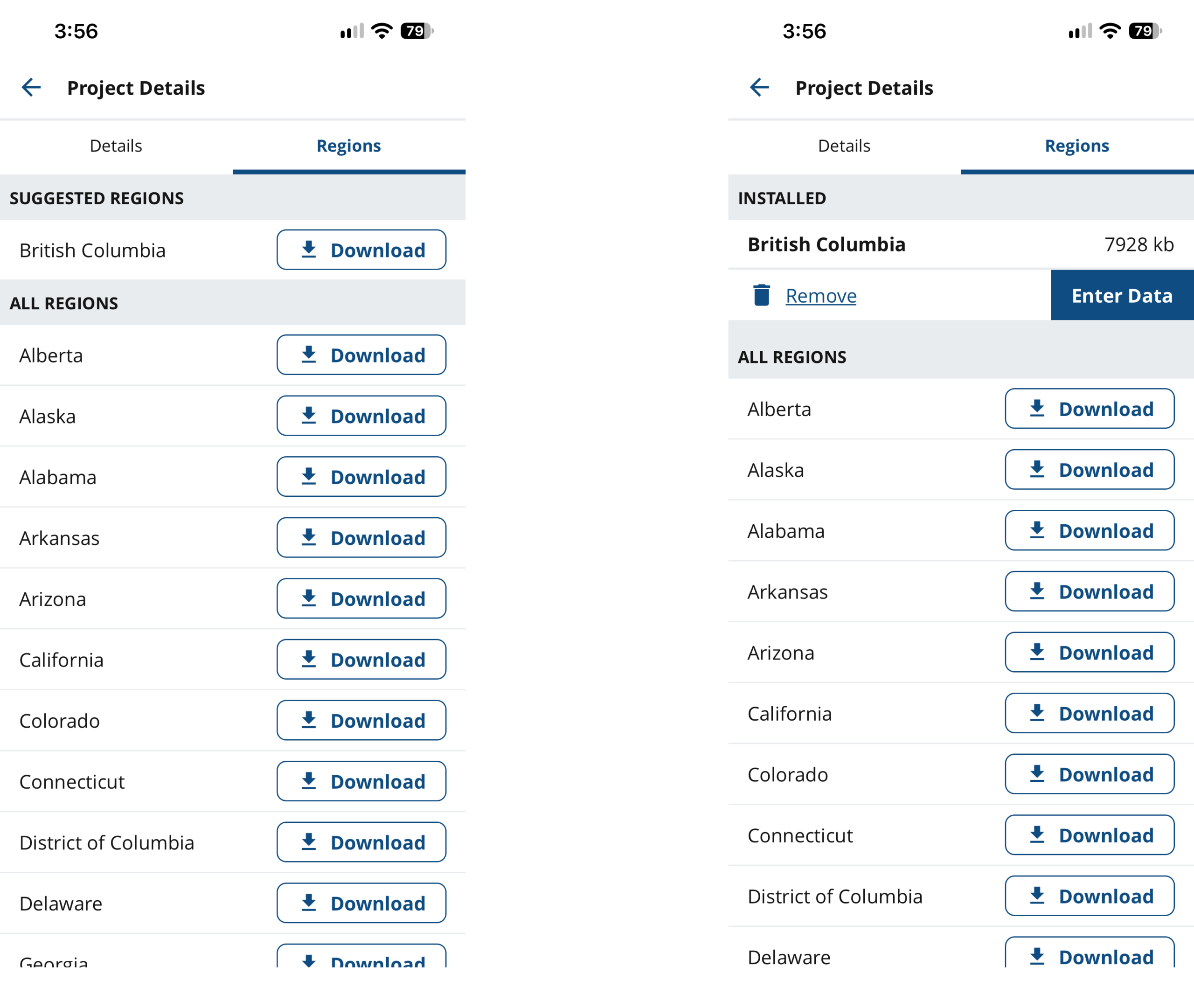
Once you have registered, you will need to download the CBC project to start entering data. Tap the name of the project in the projects list, and tap ‘Download’ beside your region. Once the download is complete, you can begin entering data by tapping ‘Enter Data’. We’ll walk through how to do that in the subsequent sections of this tutorial.
Next section: eBird Syncing