
The checklist screen displays a list of all expected birds in your region. On the right side you will see boxes in which you can enter numbers of individuals for each species. A timer in the upper left automatically records the duration of your survey.
To enter one individual of a species, tap the ‘+’ sign in the box beside that species. To enter multiple individuals at once, tap and hold the ‘+’ sign until a number pad appears, then type the desired number.

To remove all individuals of a species, tap and hold the species name until you see a prompt to clear the species. To enter a species that is not on the list, search for it in the search box at the top.
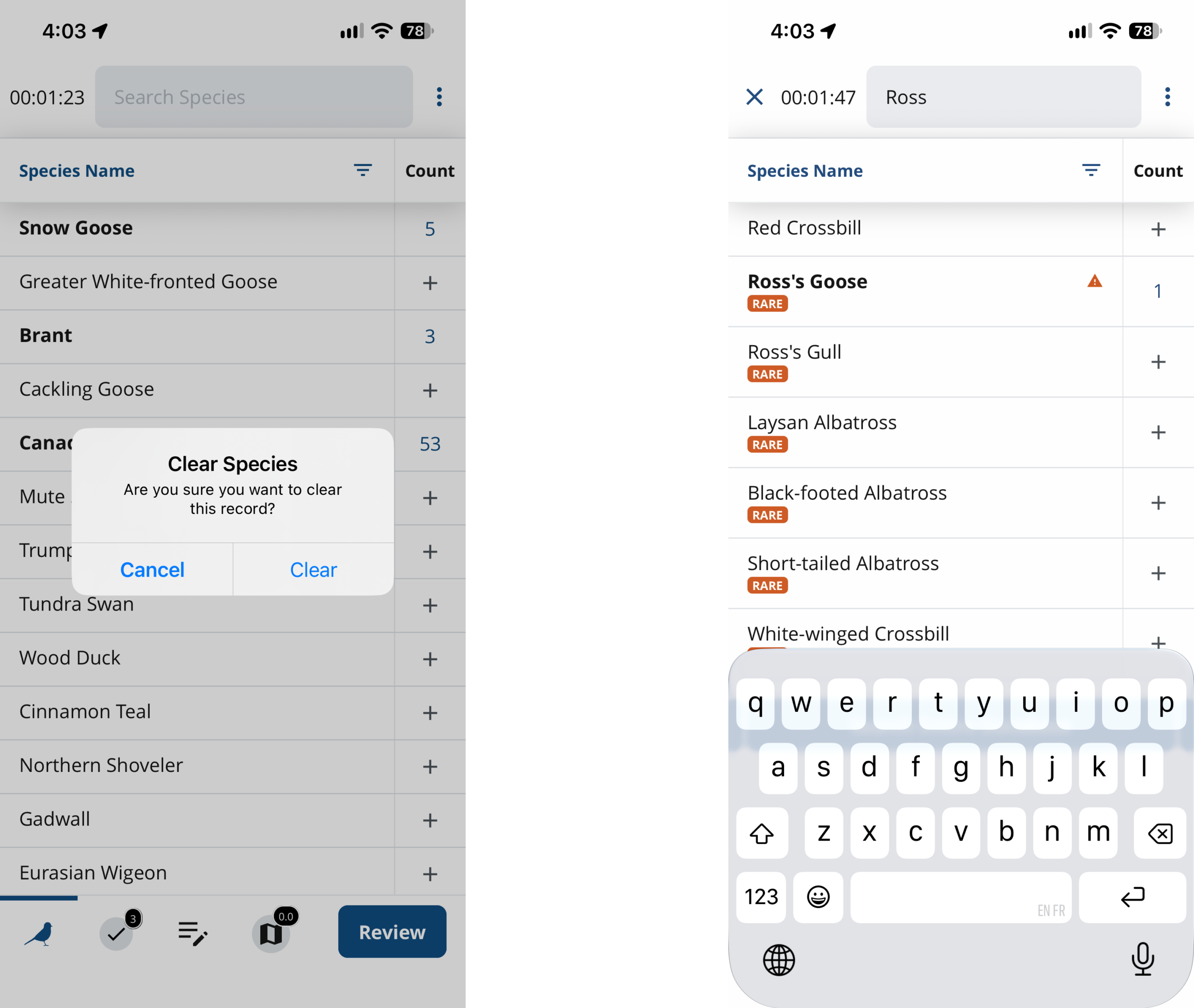
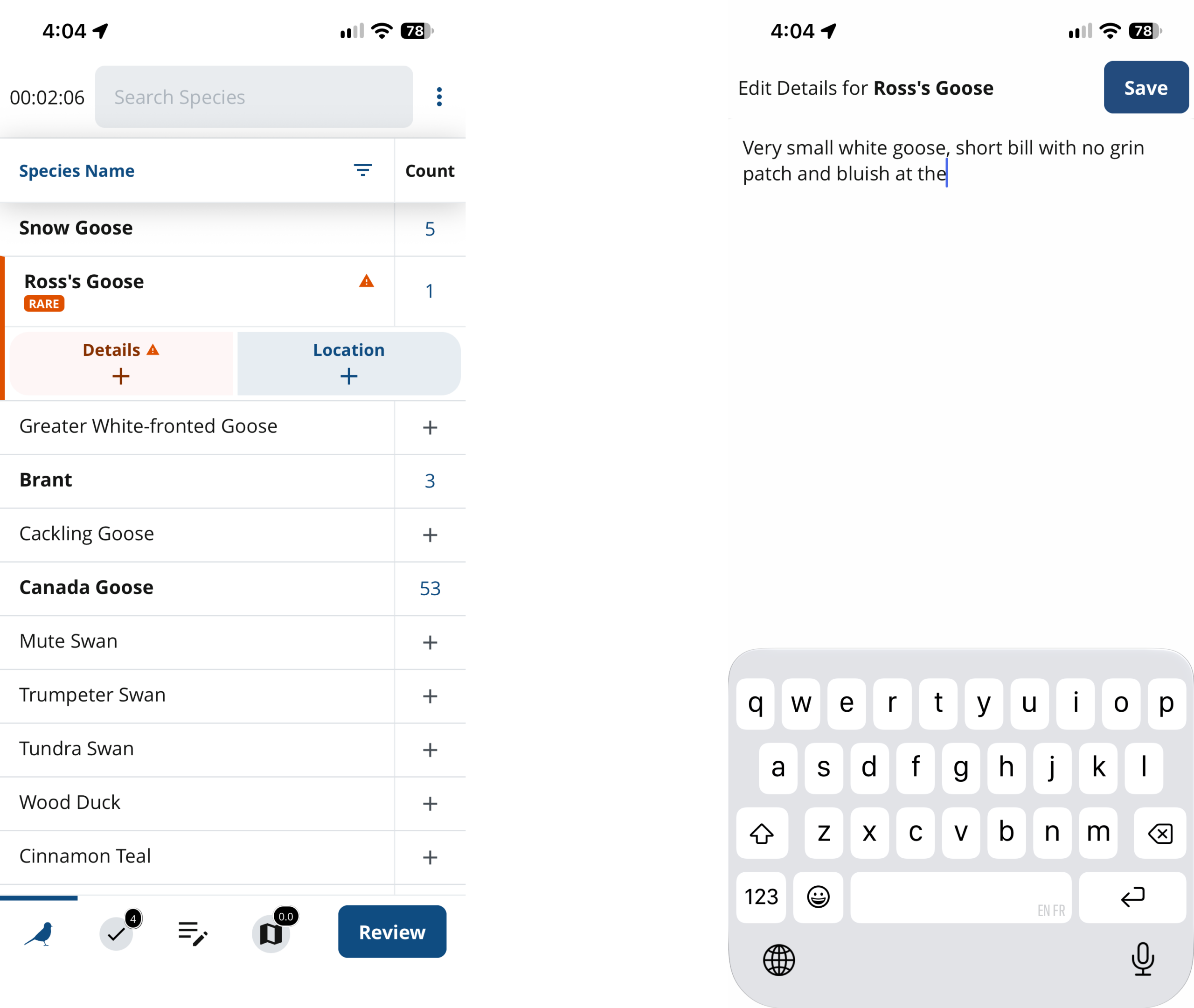
If you enter a rare species, an orange triangle will appear beside it. This indicates that additional details are required for the observation. To enter these, tap the species name, then tap the Details box. Type in the necessary details for your observation and tap ‘Save’.
While the app records your starting location and route, you can also enter specific locations for notable or rare observations. To do this, tap the species name, then tap the Location box. Tap the map where you observed the species, enter the number of individuals, and tap ‘Done’.
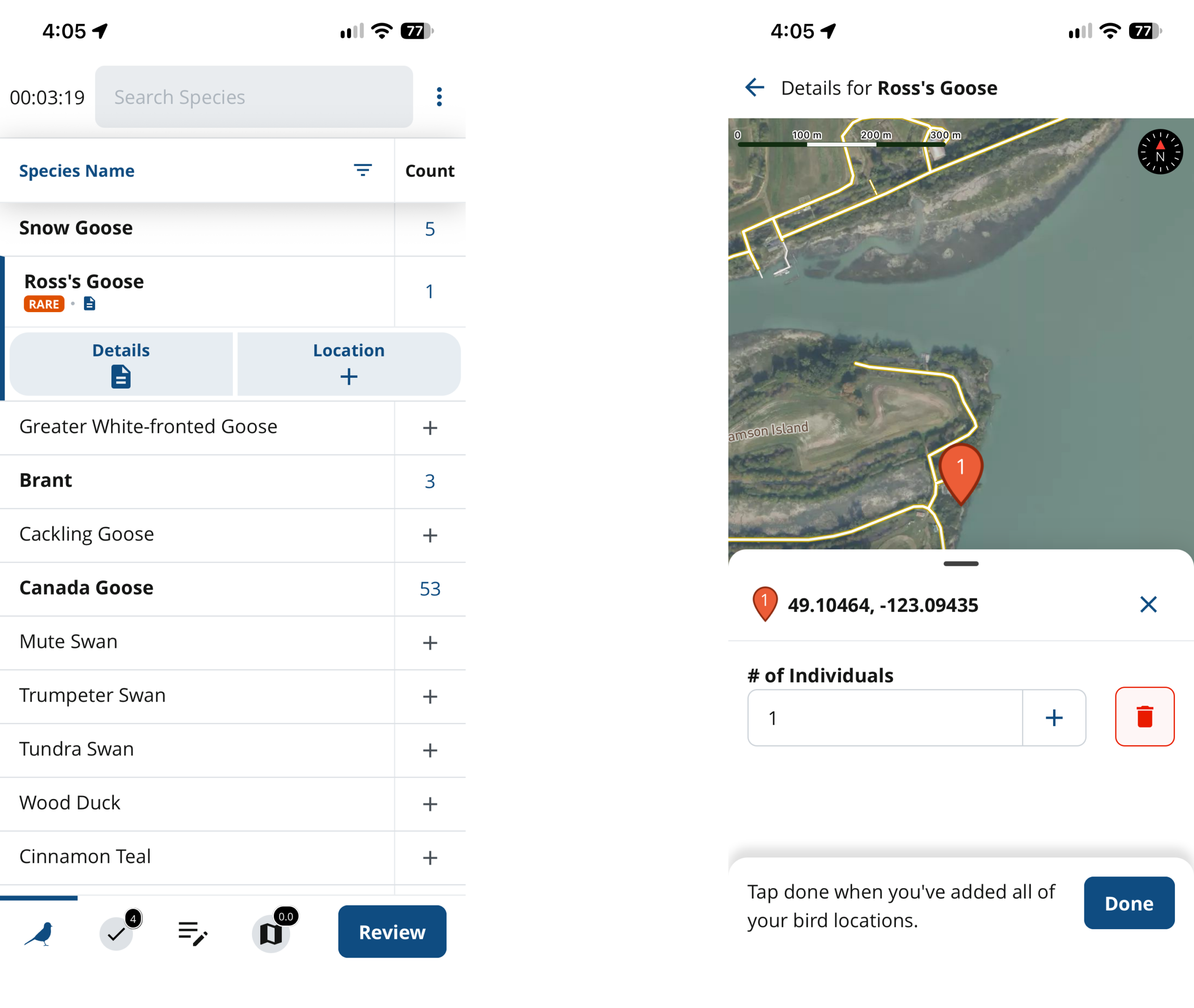
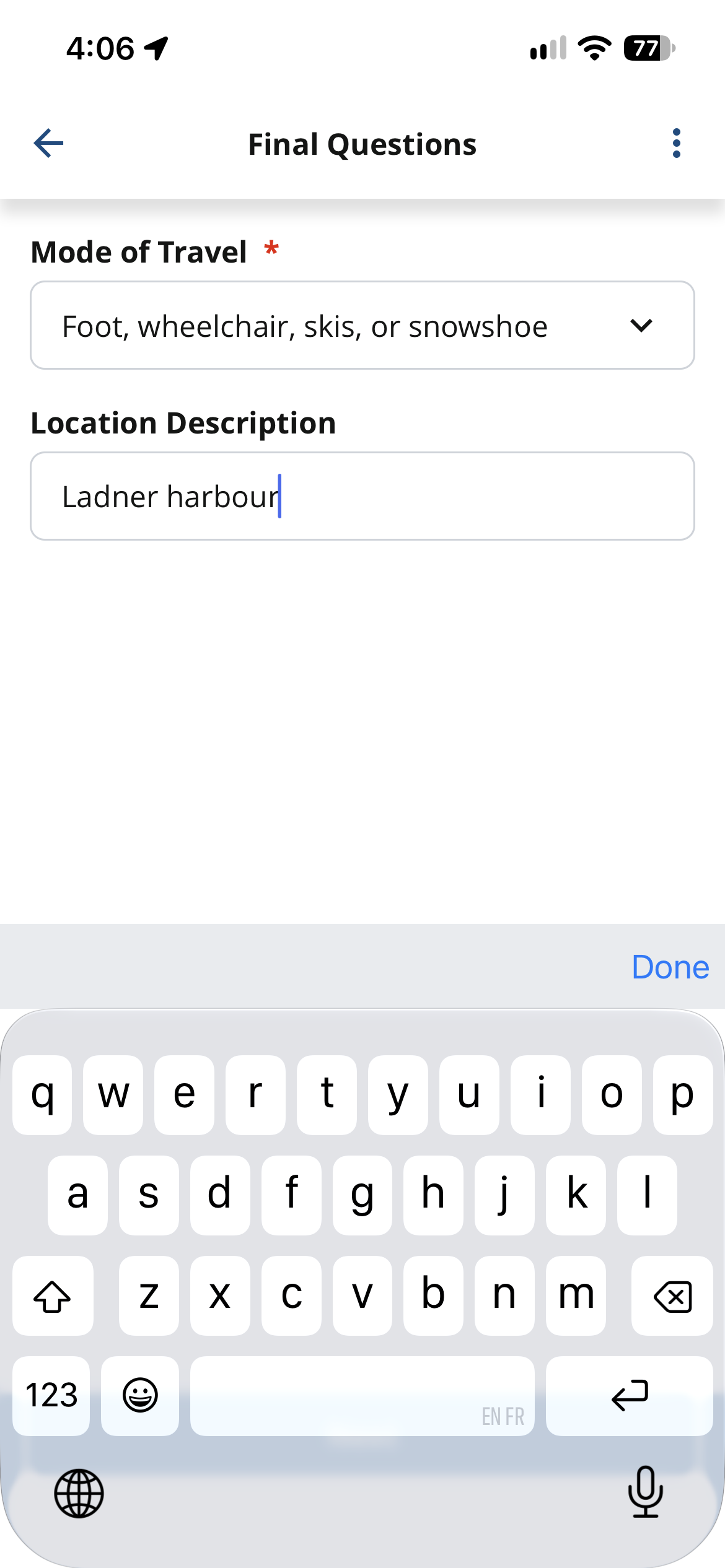
When you are finished your checklist, tap ‘Review’. In the Field Count and Nocturnal Count protocols, you will be prompted to provide a location description (optional) and select a method of travel (required).
In the following two screens, you will have the opportunity to review your checklist and make edits, then tap ‘Submit’ to submit your data.

Next section: No Connection, No Problem